Tips and shortcuts for better browsing
From tab groups, to learning time-saving keyboard shortcuts, these Chrome tips can help you get things done more quickly with your browser.
Jump to
Organize your tabs with Chrome tab groups
Create your tab group
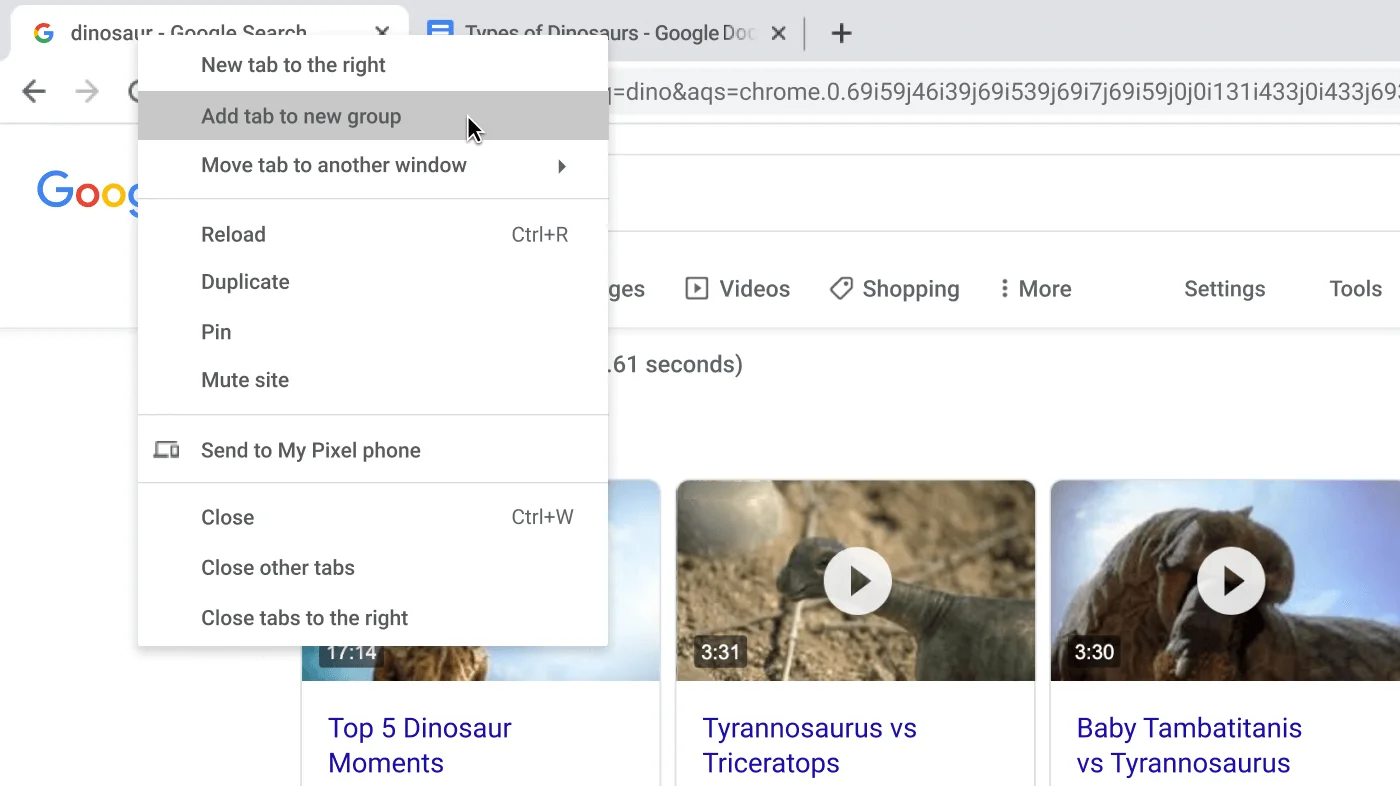
You can group tabs to keep related pages together in one workspace. To create a tab group, just right-click any tab and select Add tab to new group.
- Right-click a tab.
- Click Add Tab to new group.
- Click New Group or click the name of an existing tab group.
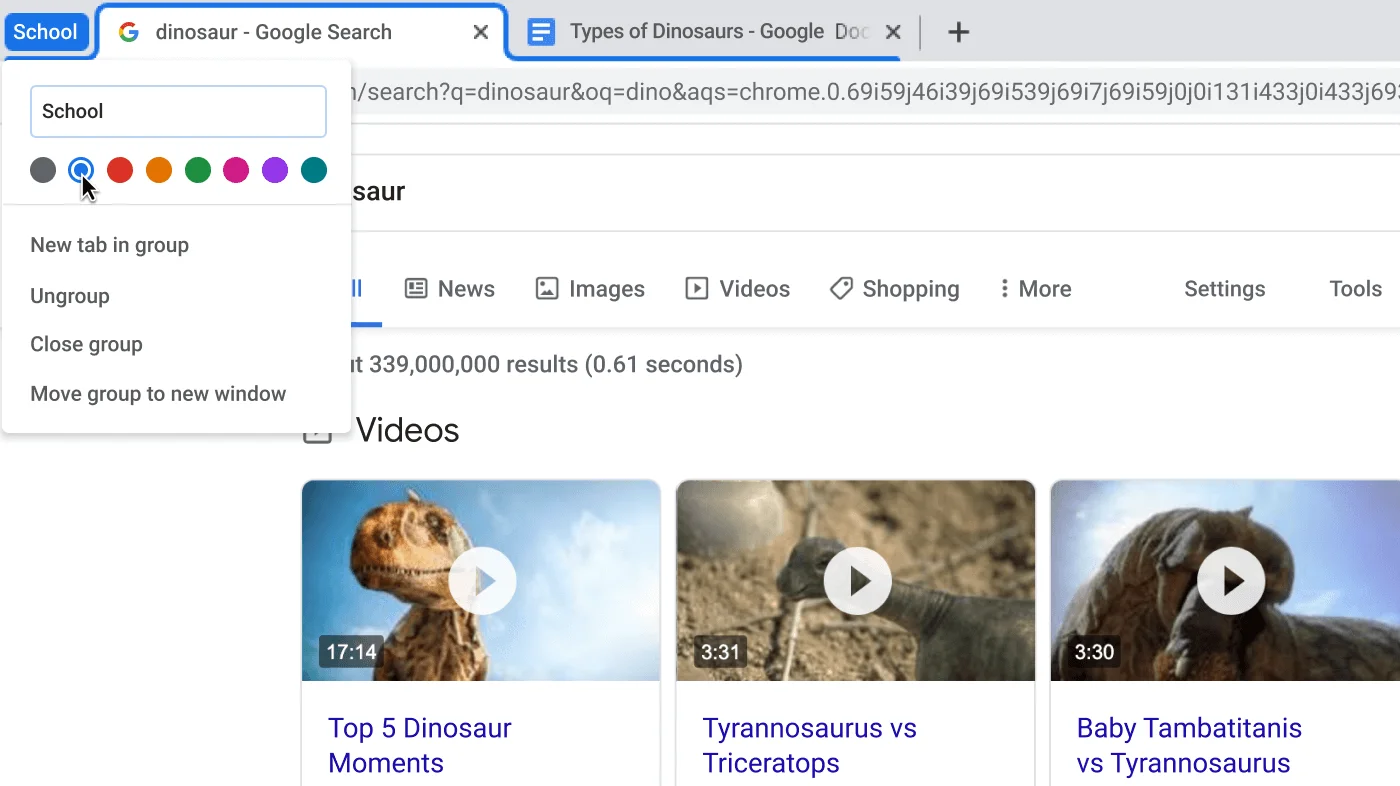
Name your Chrome tab groups and customize colors
Collapse tab groups
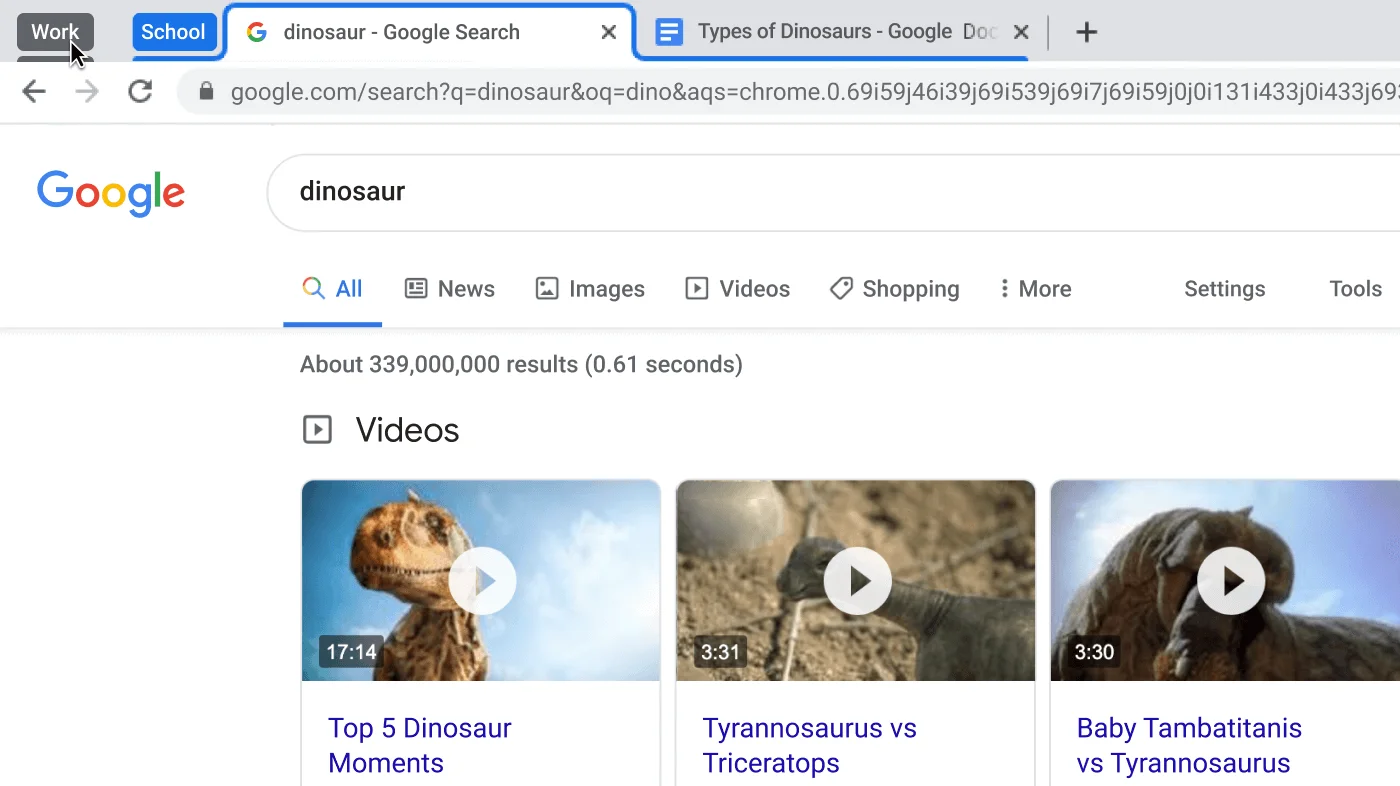
Reorder tab groups
Customize Chrome with these tips
Create Chrome shortcuts to your favorite sites
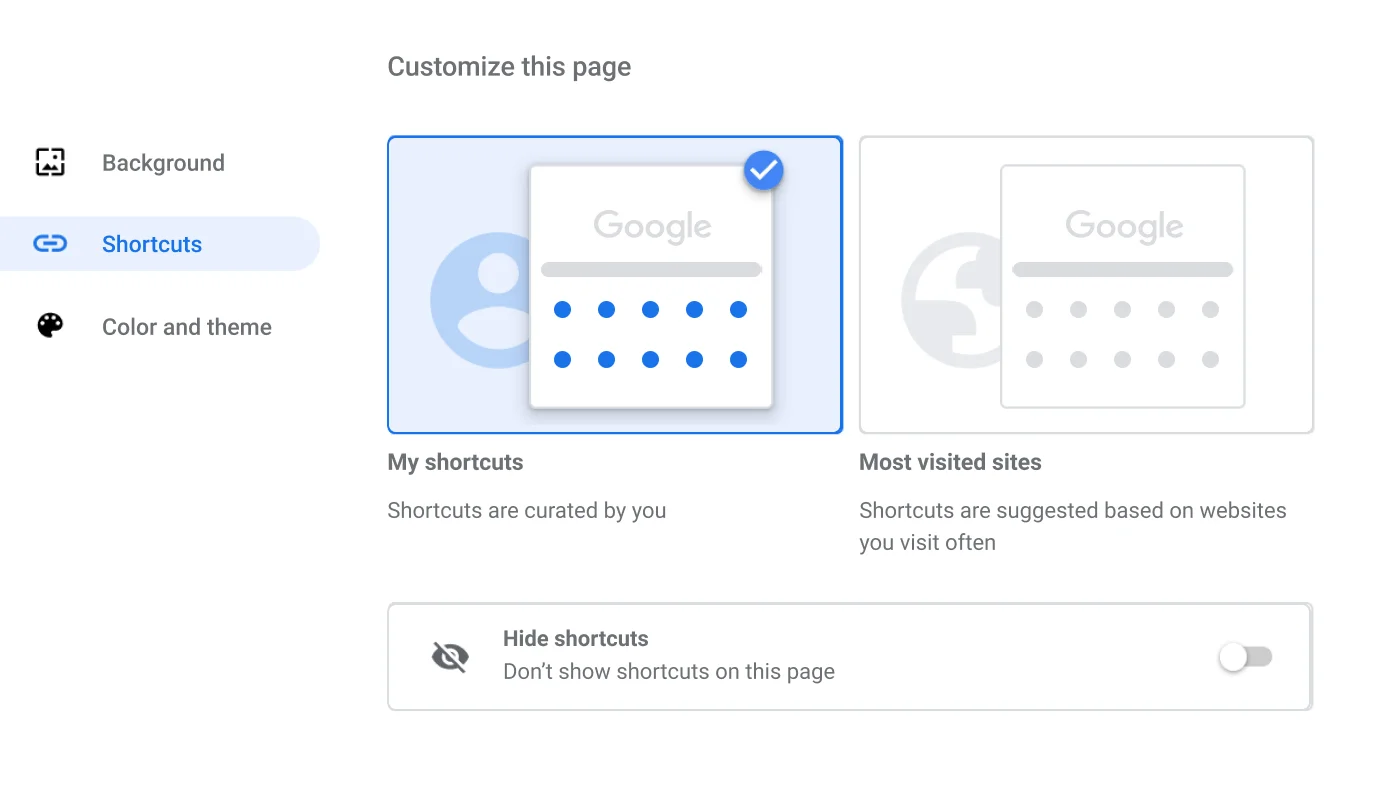
Shortcuts can help save you precious time. Just go to the ‘Shortcuts’ dialog in the Customize menu.
- Open a new tab.
- At the bottom right, click Customize.
- Click Shortcuts.
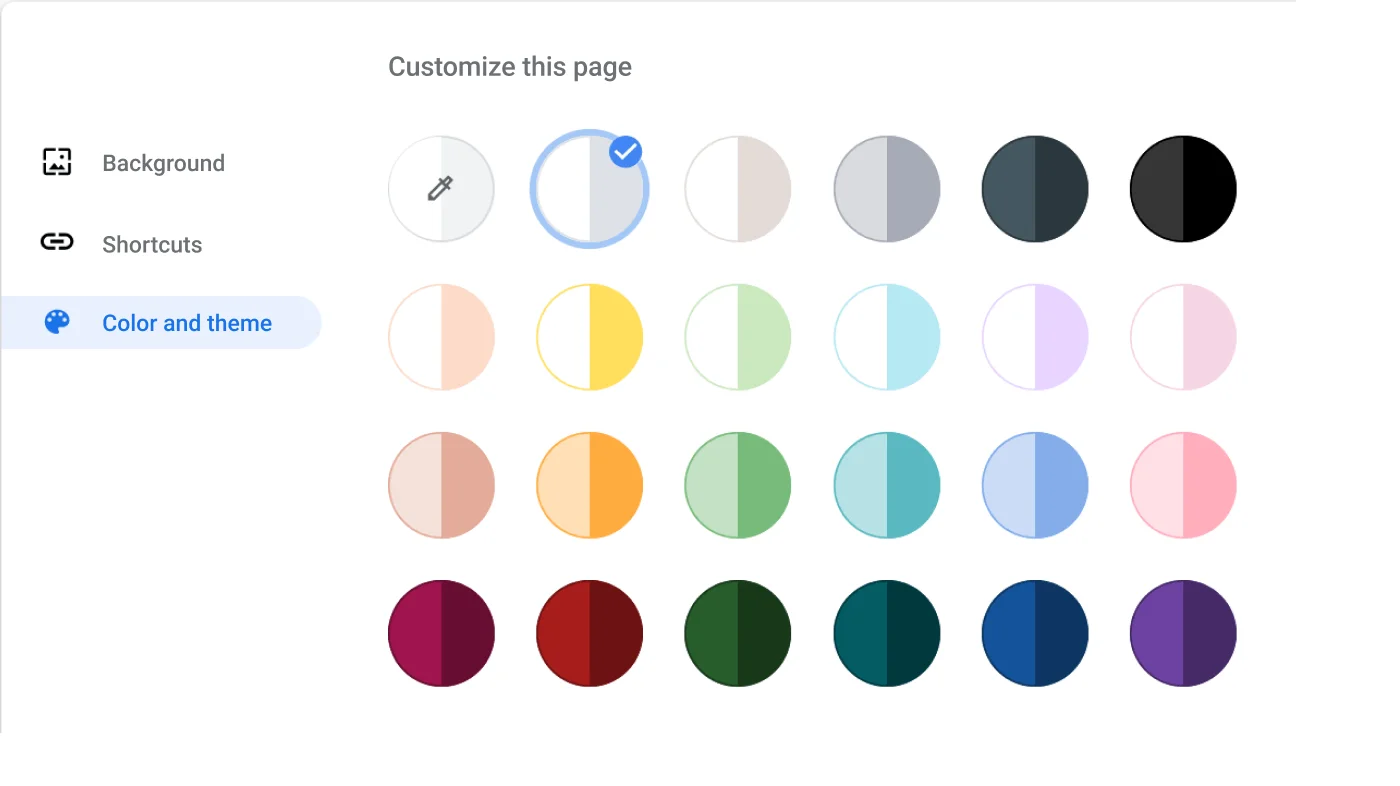
Choose your browser's color
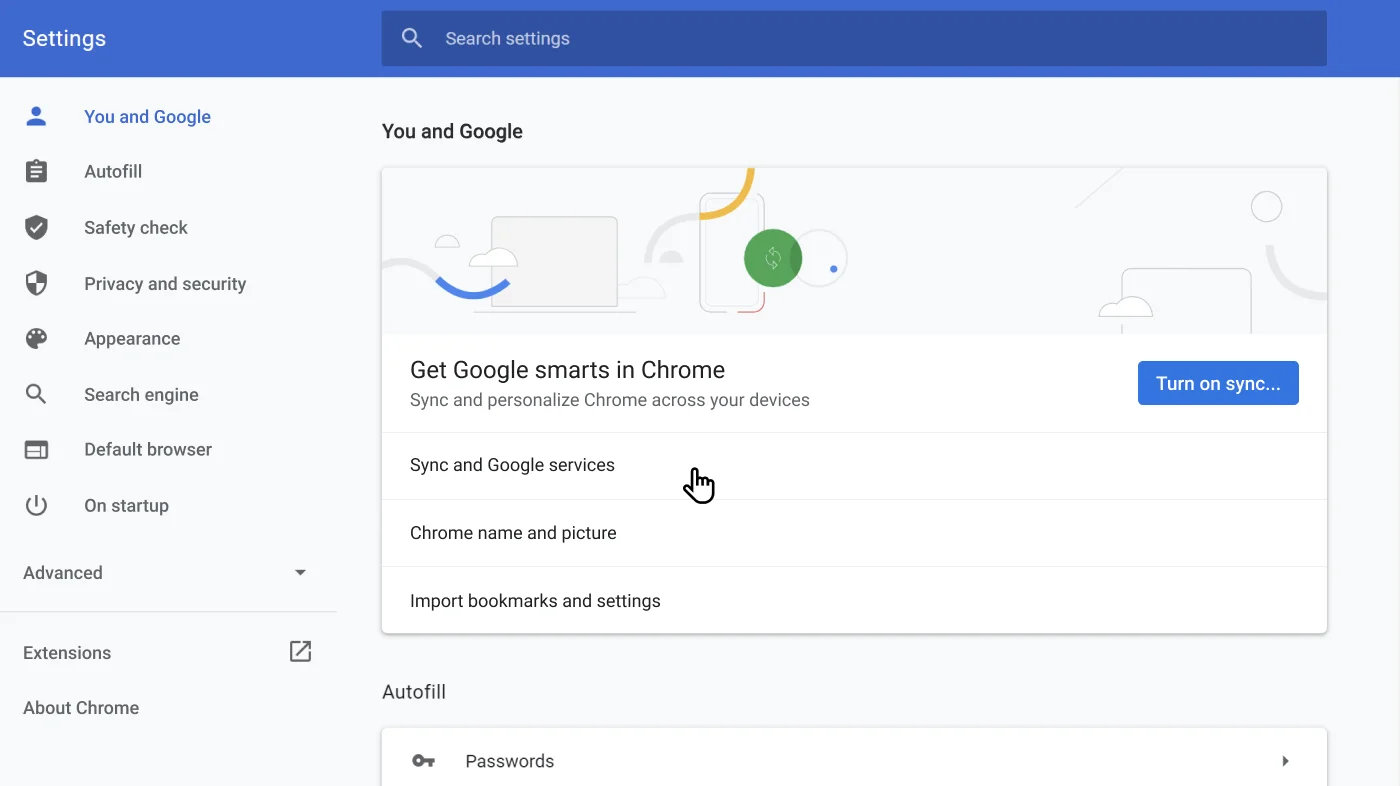
Sync Chrome across your laptop and phone
Helpful tips to maximize Chrome
Bookmark all your tabs at once
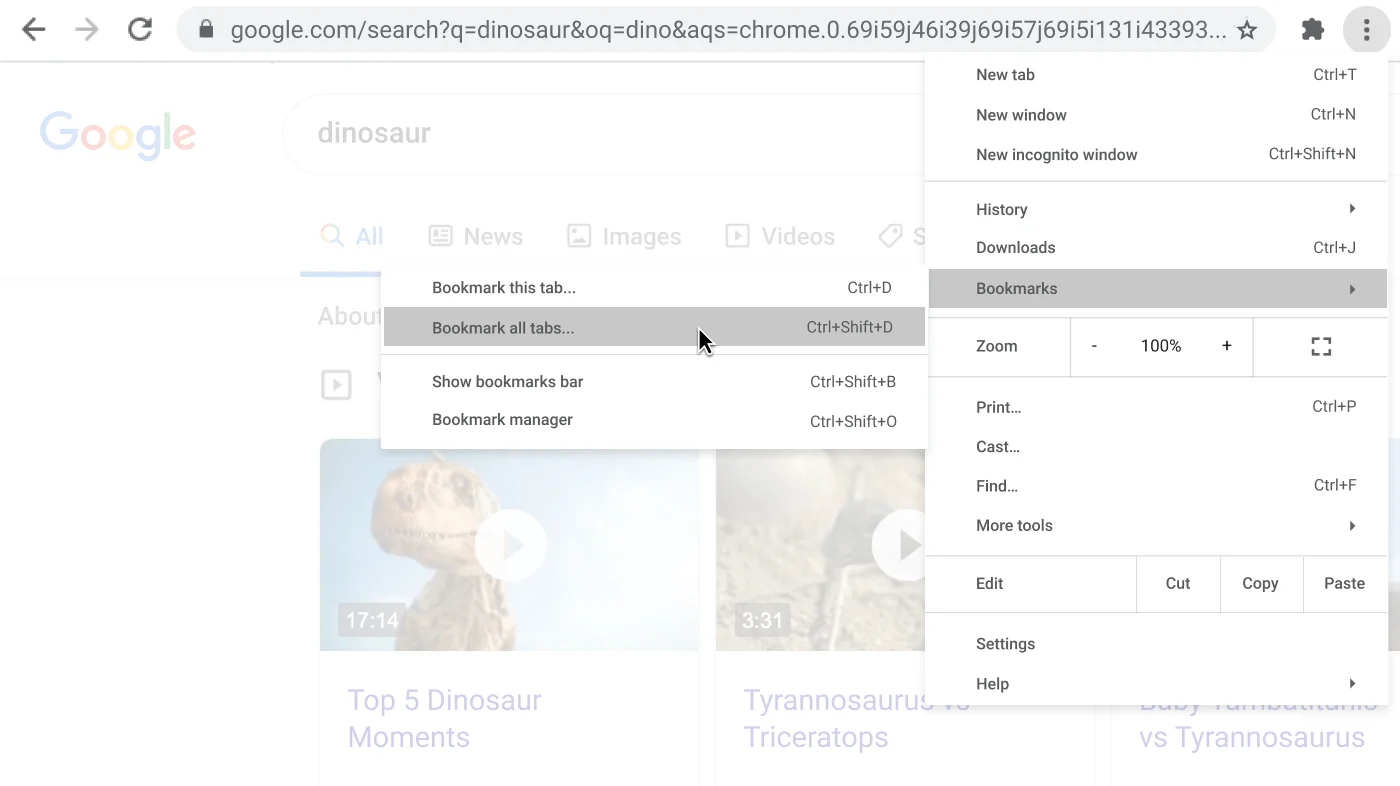
Don’t waste time clicking on individual tabs to bookmark them. With Chrome you can bookmark all your open tabs just by clicking Bookmarks in your menu and selecting Bookmark All Tabs.
- At the top right, click More .
- Click Bookmarks.
- Click Bookmark All Tabs.
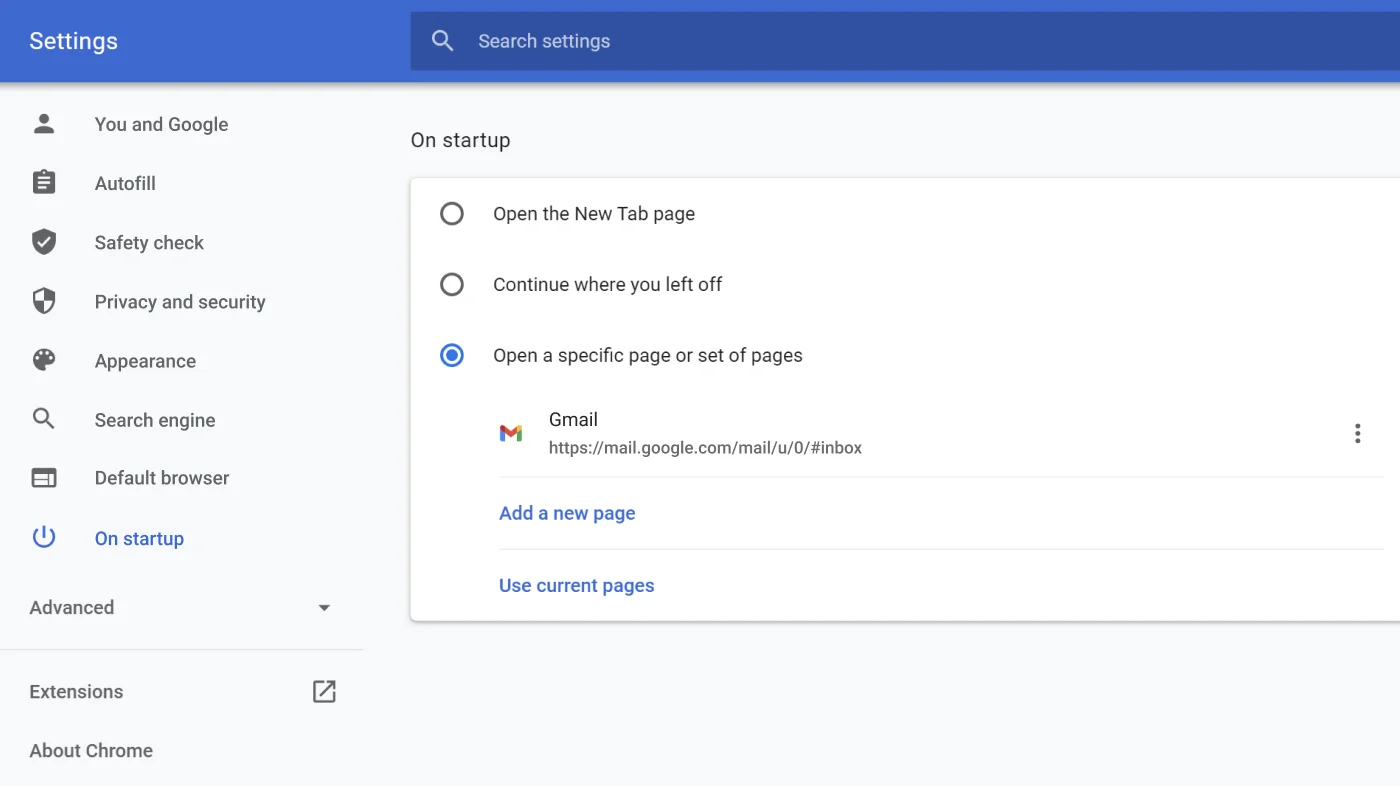
Automatically open a set of pages on Chrome startup
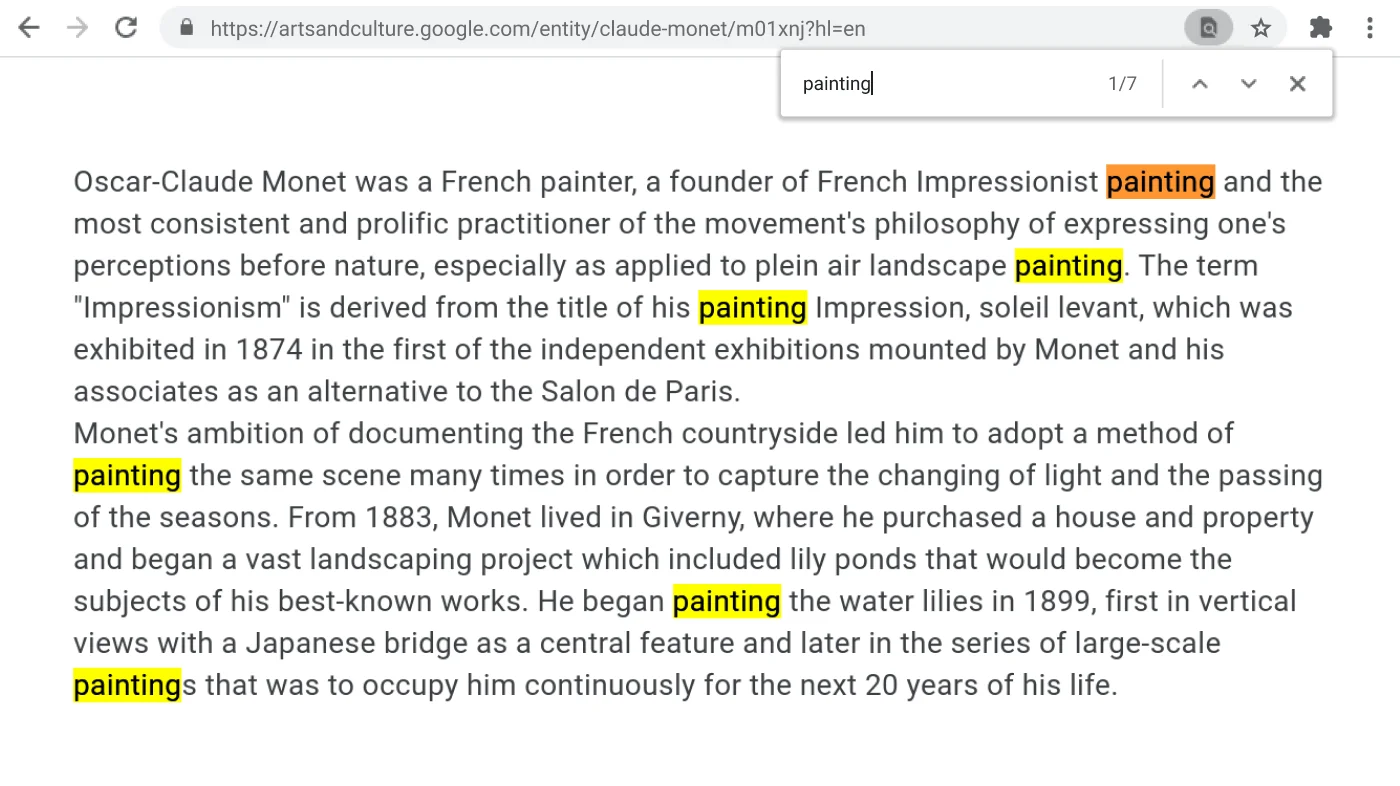
Find what you’re looking for fast
Use Chrome keyboard shortcuts to save time
Reopen your last closed tab
Sometimes you realize a split second too late that you shouldn’t have closed that tab. That’s why Chrome lets you bring it back with a few simple key strokes.
- Windows, ChromeOS & Linux: Ctrl + Shift + T
- Mac: Command + Shift + T
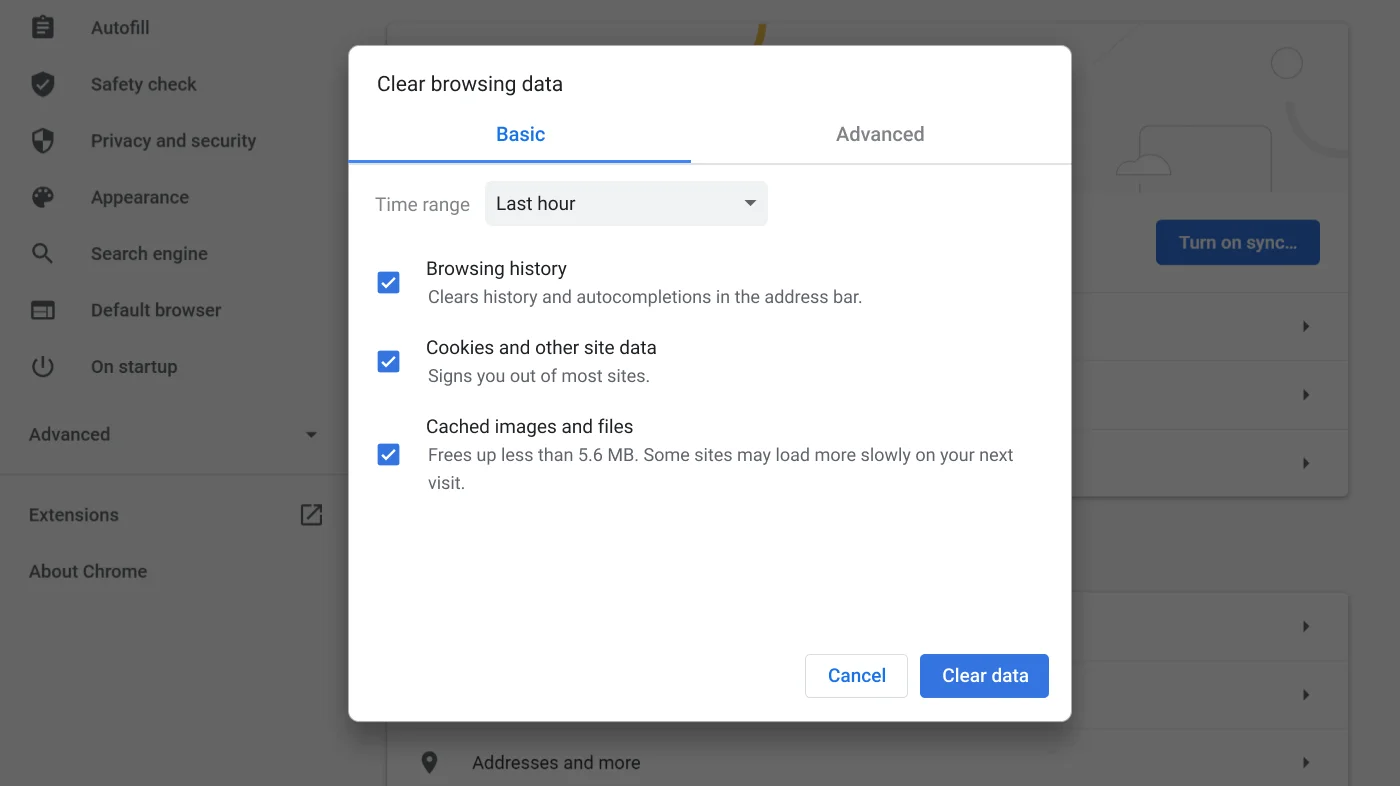
Clear browsing data
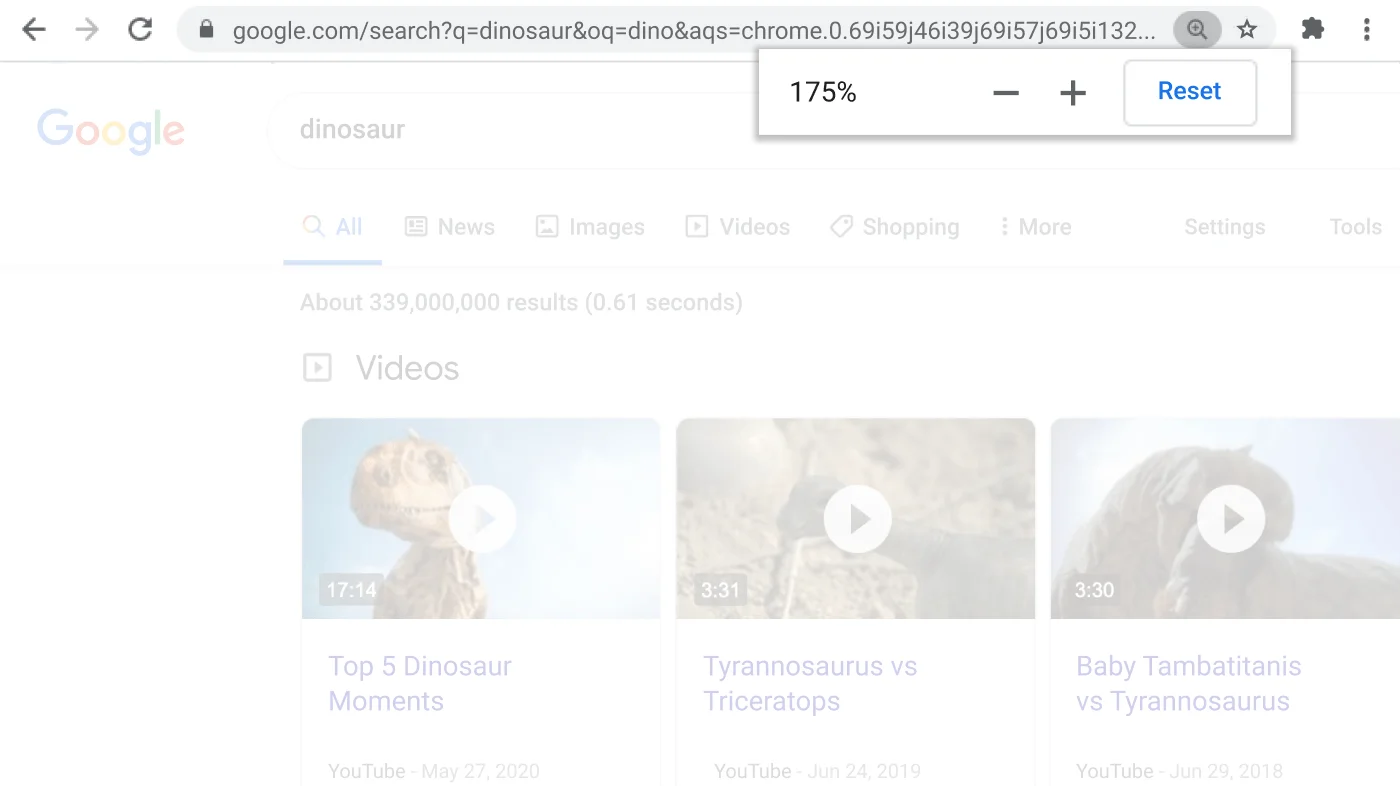
Adjust zoom levels
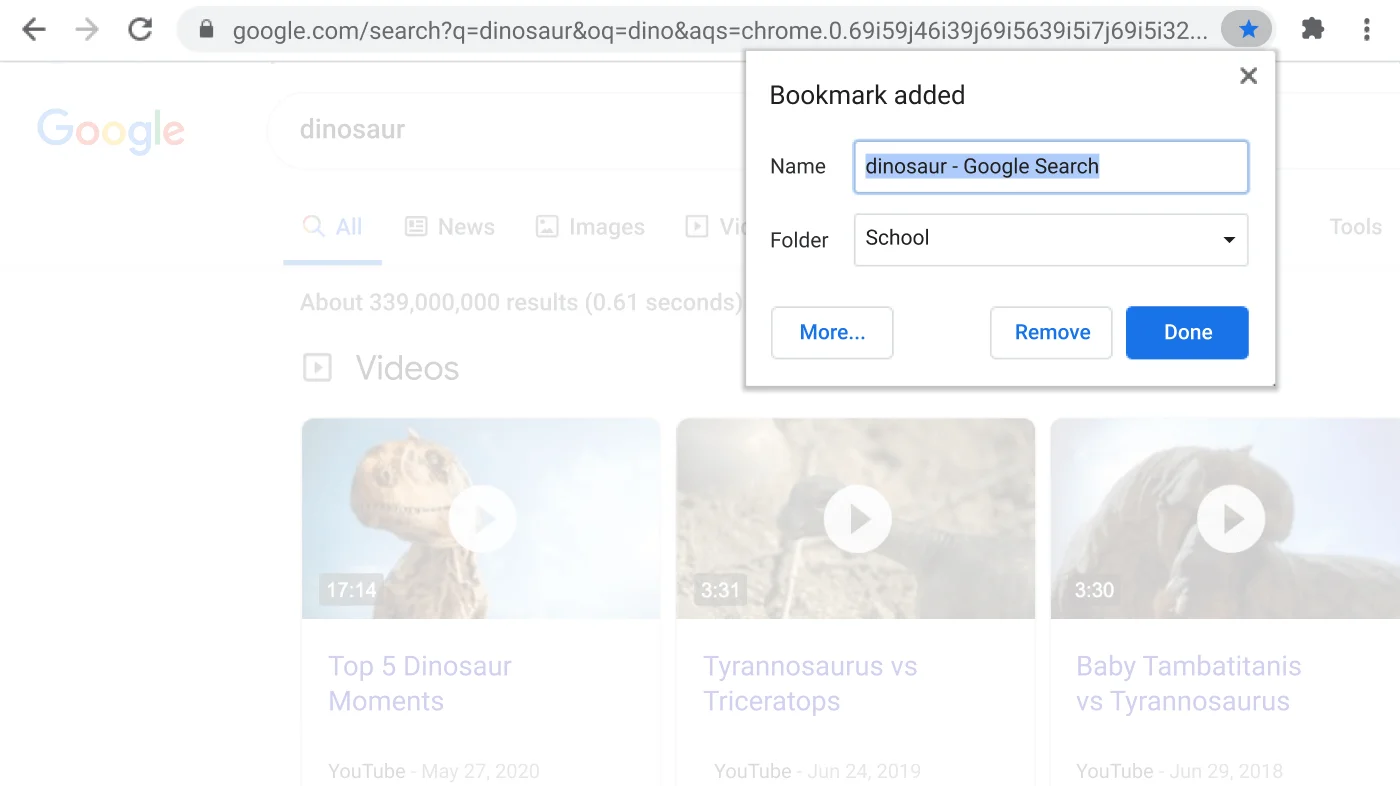
Bookmark current page